Galvanix Support
Network Power, Controlled
Network Power, Controlled
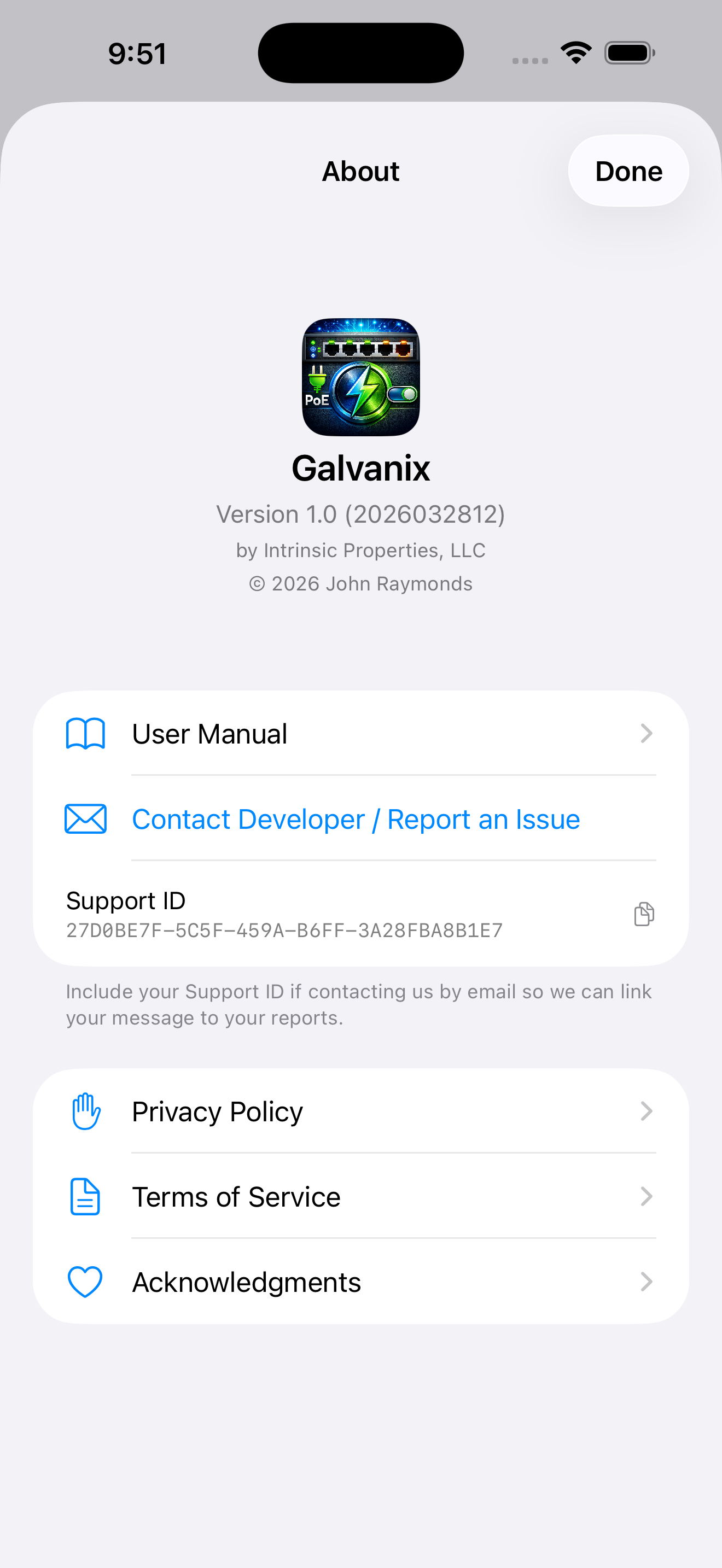
Before reaching out: Most questions are answered in the User Manual built into the app. Open Galvanix, go to the About page, and tap User Manual for detailed guidance on setup, features, and troubleshooting.
If you have a specific problem, suggestion, or question that isn't covered in the User Manual, Galvanix has built-in support tools to connect you directly with the developer.
From within the app, navigate to the About screen. You'll see the app version, your Support ID, and several options including Contact Developer / Report an Issue.
Tap Contact Developer / Report an Issue to get started.
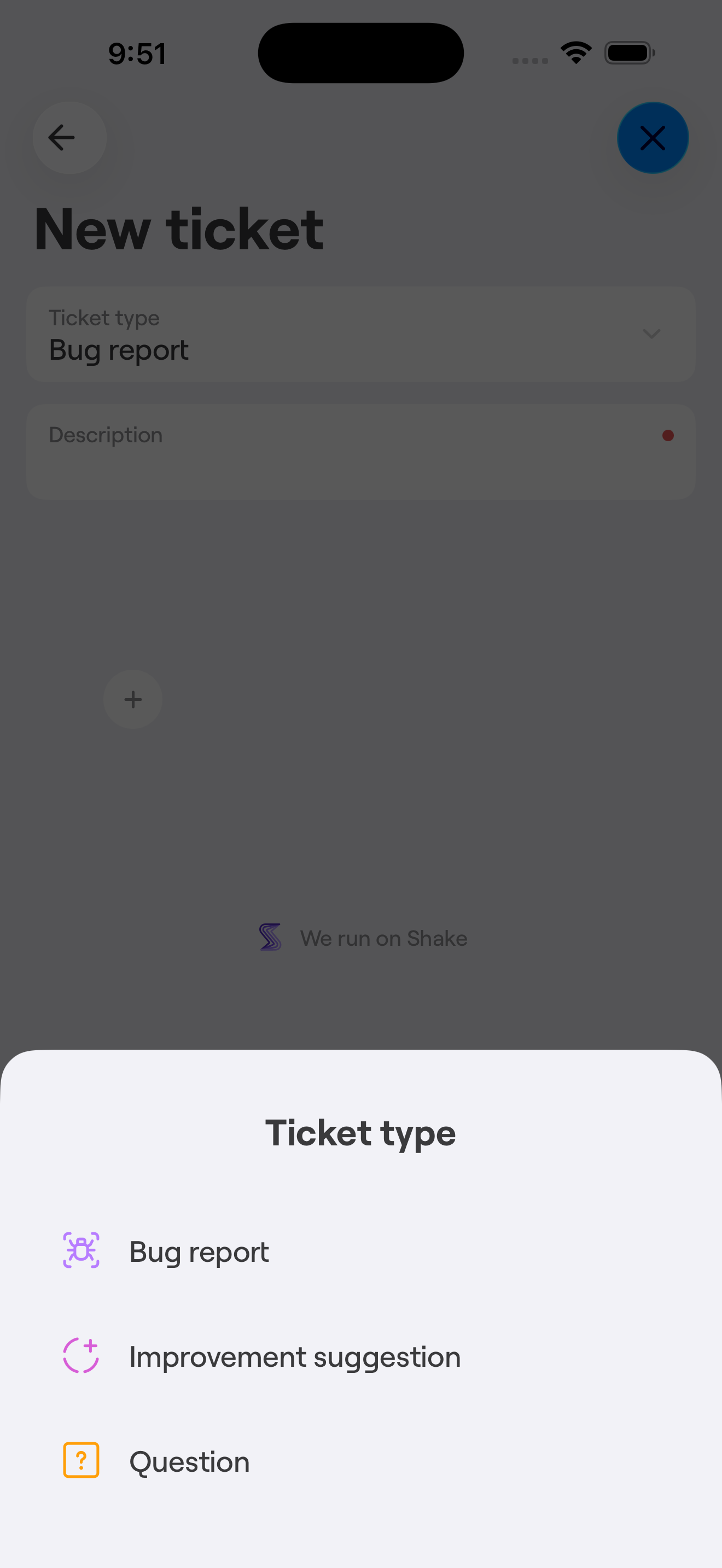
Select a Ticket type — Bug report, Improvement suggestion, or Question — and provide a description of your issue or idea. Diagnostic information is automatically attached to help resolve problems quickly.
Your SNMP credentials, passwords, and API keys are never included in reports.
If you'd prefer a conversation, tap the back arrow on the ticket screen to reach the home screen, then select New chat to start a chat session with the developer.
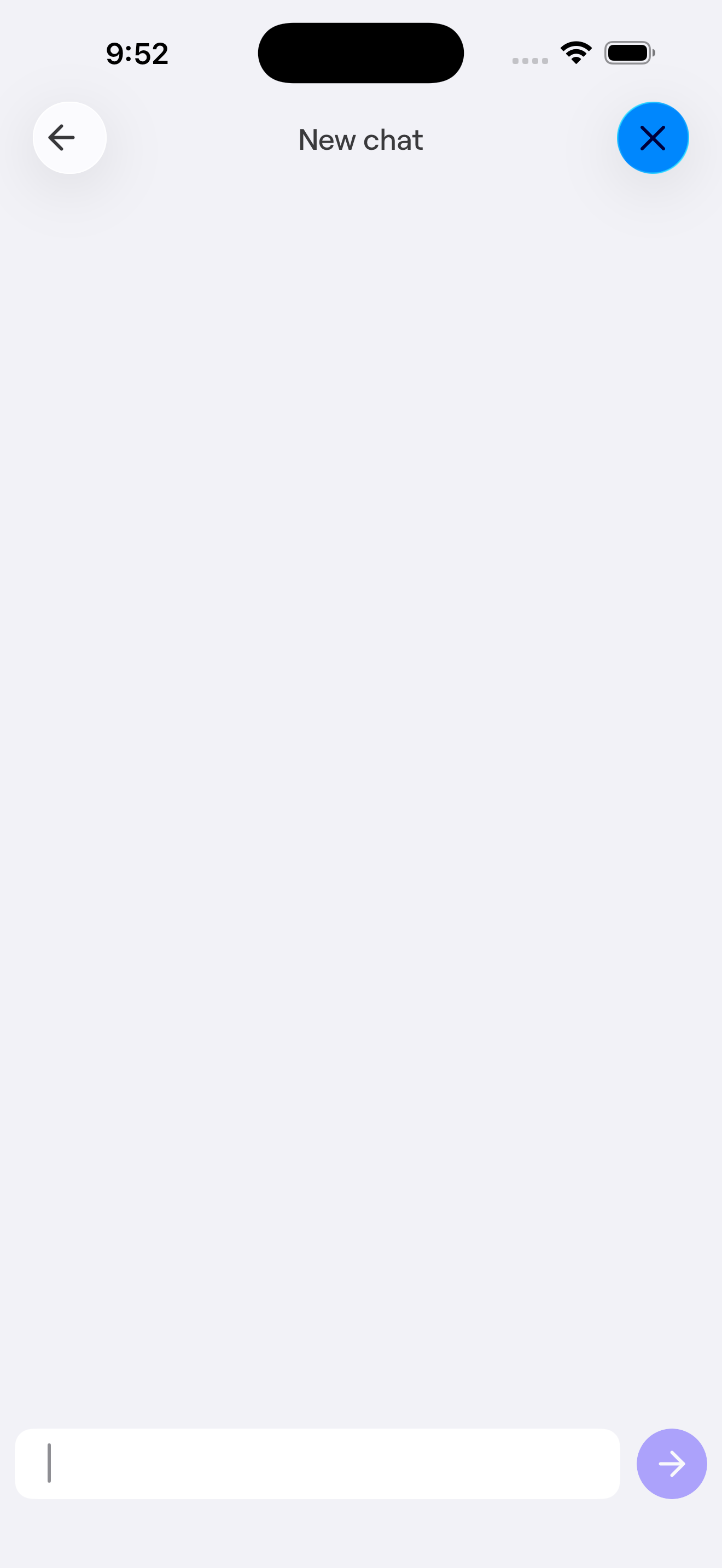
Please note: Chat is not live — it may take some time to receive a response. You will not receive a push notification when a reply is available, but if you return to the Contact Developer section in the app, you will see an indicator that a message is waiting for you to read.
To help resolve your issue as quickly as possible:
Your Support ID (visible on the About screen) is automatically linked to your reports, making it easy to track and follow up on your submissions.